
Objetivo
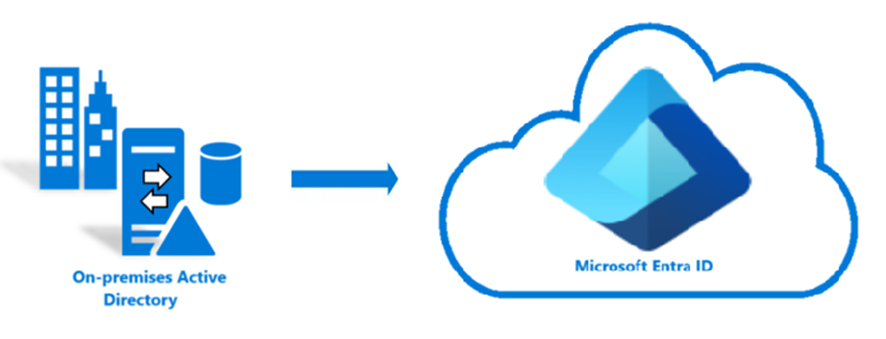
Esse post tem como objetivo informar os pré-requisitos para instalação do Entra Connect Sync e Entra Cloud Sync e as boas práticas recomendadas pela Microsoft.
Pré-requisitos e boas praticas
É necessário possuir um domínio verificado/roteavel. Para adicionar um domínio verificado/personalizado clique aqui.
A Microsoft recomenda que a lixeira do Active Directory esteja habilitada no domínio, criei o post Lixeira do Active Directory (Active Directory Recycle Bin) com todas as informações e procedimento para habilitar a lixeira.
Desabilitar IE Enhanced Security Configuration no servidor. Quando habilitado pode gerar erro na autenticação entre o servidor e o Entra Connect.
Para desabilitar abra o Server Manager no servidor e clique em Local Server.
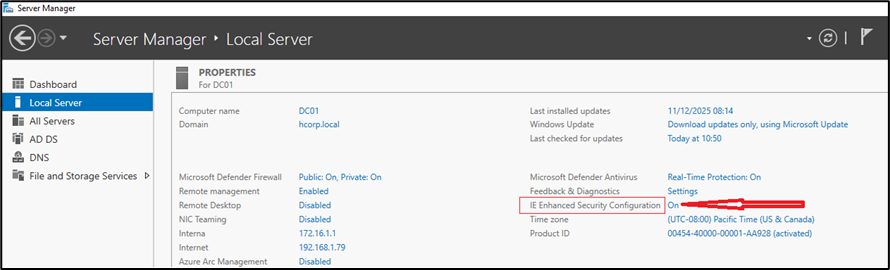
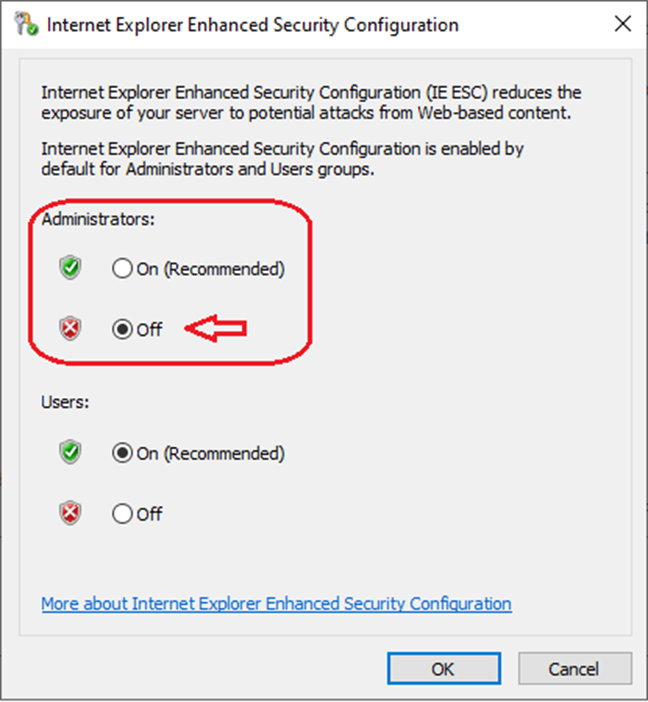
Clique em On e será aberta a janela Internet Explorer Enhanced Security Configuration, na parte de Administrators: selecione Off e clique em OK.
Instalação do framework no servidor
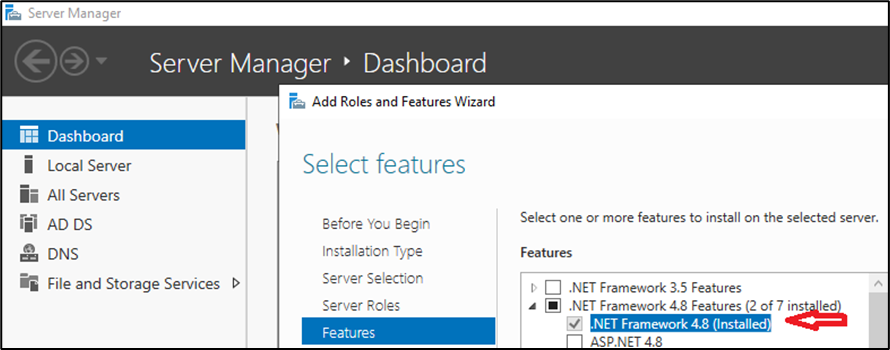
A versão mínima do .NET Framework necessária é a 4.6.2, e versões mais recentes do .NET também são suportadas. A versão 4.8 e superiores do .NET oferecem a melhor conformidade com os requisitos de acessibilidade.
Realize o download do framework aqui.
Dependendo da versão do Windows você pode instalar a feature através do Server Manager.
Imposição do TLS 1.2 para o Microsoft Entra Connect Sync
A versão 1.2 TLS é um protocolo de criptografia para fornecer comunicação segura. O TLS passou por muitas iterações, com a versão 1.2. A versão mais recente do Microsoft Entra Connect Sync dá suporte total ao uso apenas do TLS 1.2 para comunicações. Antes de instalar as versões mais recentes do Microsoft Entra Connect Sync, habilite o TLS 1.2.
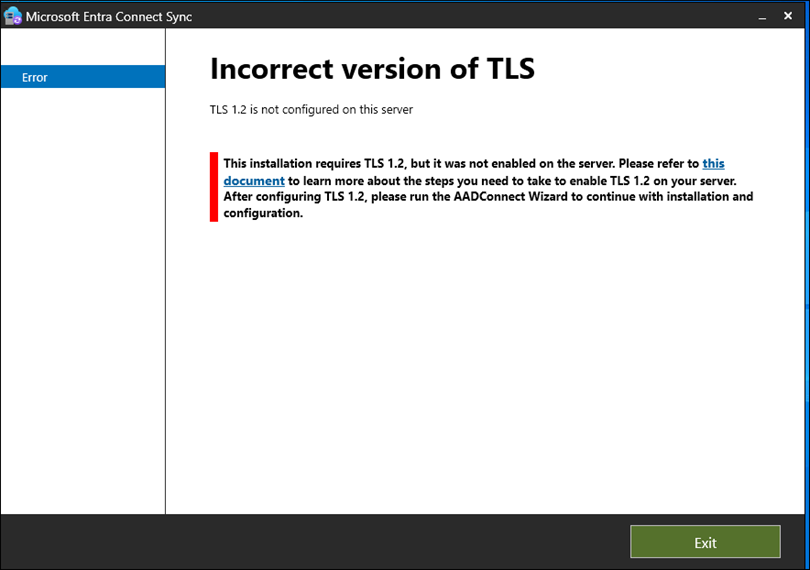
Pois caso não instale a seguinte mensagem de erro será exibida.
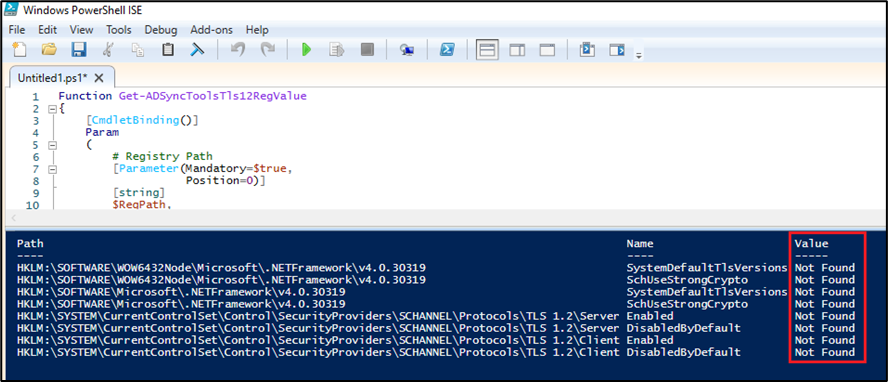
O script PowerShell da Microsoft VERIFICAÇÃO-TLS abaixo serve para verificar as configurações atuais do TLS 1.2 no servidor que será instalado o Microsoft Entra Connect. Abra o PowerShell como Administrator.
Function Get-ADSyncToolsTls12RegValue
{
    [CmdletBinding()]
    Param
    (
        # Registry Path
        [Parameter(Mandatory=$true,
                   Position=0)]
        [string]
        $RegPath,

# Registry Name
        [Parameter(Mandatory=$true,
                   Position=1)]
        [string]
        $RegName
    )
    $regItem = Get-ItemProperty -Path $RegPath -Name $RegName -ErrorAction Ignore
    $output = "" | select Path,Name,Value
    $output.Path = $RegPath
    $output.Name = $RegName

If ($regItem -eq $null)
    {
        $output.Value = "Not Found"
    }
    Else
    {
        $output.Value = $regItem.$RegName
    }
    $output
}

$regSettings = @()
$regKey = 'HKLM:\SOFTWARE\WOW6432Node\Microsoft\.NETFramework\v4.0.30319'
$regSettings += Get-ADSyncToolsTls12RegValue $regKey 'SystemDefaultTlsVersions'
$regSettings += Get-ADSyncToolsTls12RegValue $regKey 'SchUseStrongCrypto'

$regKey = 'HKLM:\SOFTWARE\Microsoft\.NETFramework\v4.0.30319'
$regSettings += Get-ADSyncToolsTls12RegValue $regKey 'SystemDefaultTlsVersions'
$regSettings += Get-ADSyncToolsTls12RegValue $regKey 'SchUseStrongCrypto'

$regKey = 'HKLM:\SYSTEM\CurrentControlSet\Control\SecurityProviders\SCHANNEL\Protocols\TLS 1.2\Server'
$regSettings += Get-ADSyncToolsTls12RegValue $regKey 'Enabled'
$regSettings += Get-ADSyncToolsTls12RegValue $regKey 'DisabledByDefault'

$regKey = 'HKLM:\SYSTEM\CurrentControlSet\Control\SecurityProviders\SCHANNEL\Protocols\TLS 1.2\Client'
$regSettings += Get-ADSyncToolsTls12RegValue $regKey 'Enabled'
$regSettings += Get-ADSyncToolsTls12RegValue $regKey 'DisabledByDefault'

$regSettings
Verifique a coluna Value que o protocolo TLS 1.2 não está habilitado.
Para habilitar o TLS 1.2 no servidor do Microsoft Entra Connect execute o script PowerShell da Microsoft HABILITA-TLS abaixo. Abra o PowerShell como administrator
If (-Not (Test-Path 'HKLM:\SOFTWARE\WOW6432Node\Microsoft\.NETFramework\v4.0.30319'))
{
    New-Item 'HKLM:\SOFTWARE\WOW6432Node\Microsoft\.NETFramework\v4.0.30319' -Force | Out-Null
}
New-ItemProperty -Path 'HKLM:\SOFTWARE\WOW6432Node\Microsoft\.NETFramework\v4.0.30319' -Name 'SystemDefaultTlsVersions' -Value '1' -PropertyType 'DWord' -Force | Out-Null
New-ItemProperty -Path 'HKLM:\SOFTWARE\WOW6432Node\Microsoft\.NETFramework\v4.0.30319' -Name 'SchUseStrongCrypto' -Value '1' -PropertyType 'DWord' -Force | Out-Null

If (-Not (Test-Path 'HKLM:\SOFTWARE\Microsoft\.NETFramework\v4.0.30319'))
{
    New-Item 'HKLM:\SOFTWARE\Microsoft\.NETFramework\v4.0.30319' -Force | Out-Null
}
New-ItemProperty -Path 'HKLM:\SOFTWARE\Microsoft\.NETFramework\v4.0.30319' -Name 'SystemDefaultTlsVersions' -Value '1' -PropertyType 'DWord' -Force | Out-Null
New-ItemProperty -Path 'HKLM:\SOFTWARE\Microsoft\.NETFramework\v4.0.30319' -Name 'SchUseStrongCrypto' -Value '1' -PropertyType 'DWord' -Force | Out-Null

If (-Not (Test-Path 'HKLM:\SYSTEM\CurrentControlSet\Control\SecurityProviders\SCHANNEL\Protocols\TLS 1.2\Server'))
{
    New-Item 'HKLM:\SYSTEM\CurrentControlSet\Control\SecurityProviders\SCHANNEL\Protocols\TLS 1.2\Server' -Force | Out-Null
}
New-ItemProperty -Path 'HKLM:\SYSTEM\CurrentControlSet\Control\SecurityProviders\SCHANNEL\Protocols\TLS 1.2\Server' -Name 'Enabled' -Value '1' -PropertyType 'DWord' -Force | Out-Null
New-ItemProperty -Path 'HKLM:\SYSTEM\CurrentControlSet\Control\SecurityProviders\SCHANNEL\Protocols\TLS 1.2\Server' -Name 'DisabledByDefault' -Value '0' -PropertyType 'DWord' -Force | Out-Null

If (-Not (Test-Path 'HKLM:\SYSTEM\CurrentControlSet\Control\SecurityProviders\SCHANNEL\Protocols\TLS 1.2\Client'))
{
    New-Item 'HKLM:\SYSTEM\CurrentControlSet\Control\SecurityProviders\SCHANNEL\Protocols\TLS 1.2\Client' -Force | Out-Null
}
New-ItemProperty -Path 'HKLM:\SYSTEM\CurrentControlSet\Control\SecurityProviders\SCHANNEL\Protocols\TLS 1.2\Client' -Name 'Enabled' -Value '1' -PropertyType 'DWord' -Force | Out-Null
New-ItemProperty -Path 'HKLM:\SYSTEM\CurrentControlSet\Control\SecurityProviders\SCHANNEL\Protocols\TLS 1.2\Client' -Name 'DisabledByDefault' -Value '0' -PropertyType 'DWord' -Force | Out-Null

Write-Host 'TLS 1.2 has been enabled. You must restart the Windows Server for the changes to take affect.' -ForegroundColor Cyan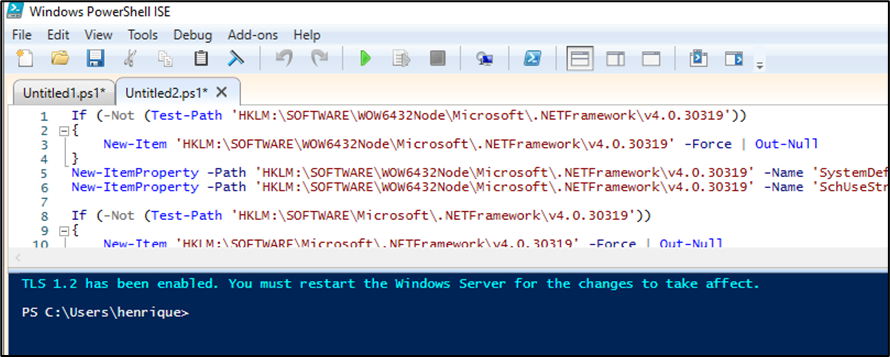
Após habilitar o TLS será necessário reiniciar o servidor.
Execute novamente o script VERIFICAÇÃO-TLS para verificarse as configurações foram aplicadas.
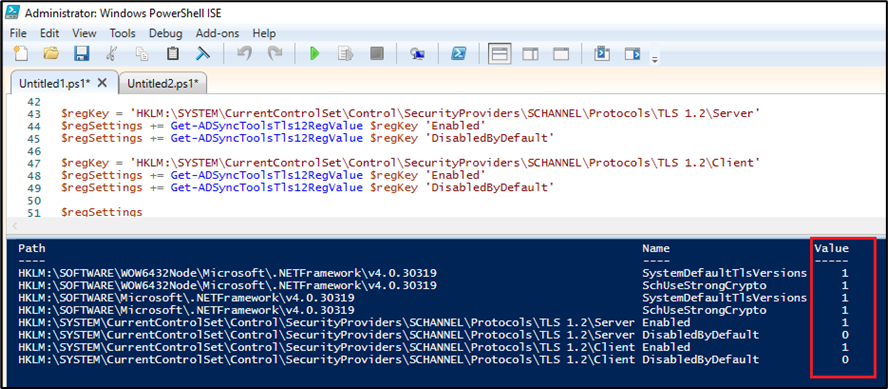
Agora o TLS 1.2 está habilitado no servidor.
Para mais informações referente a comunicação necessária via TLS 1.2 com o Entra ID clique aqui.
Com essas configurações é possível realizar a instalação e configuração das sincronizações.
Para uma listagem geral de todos os pré-requisitos verifique os sites abaixo:
Pré-requisitos Entra Connect Sync
Pré-requisitos Entra Cloud Sync